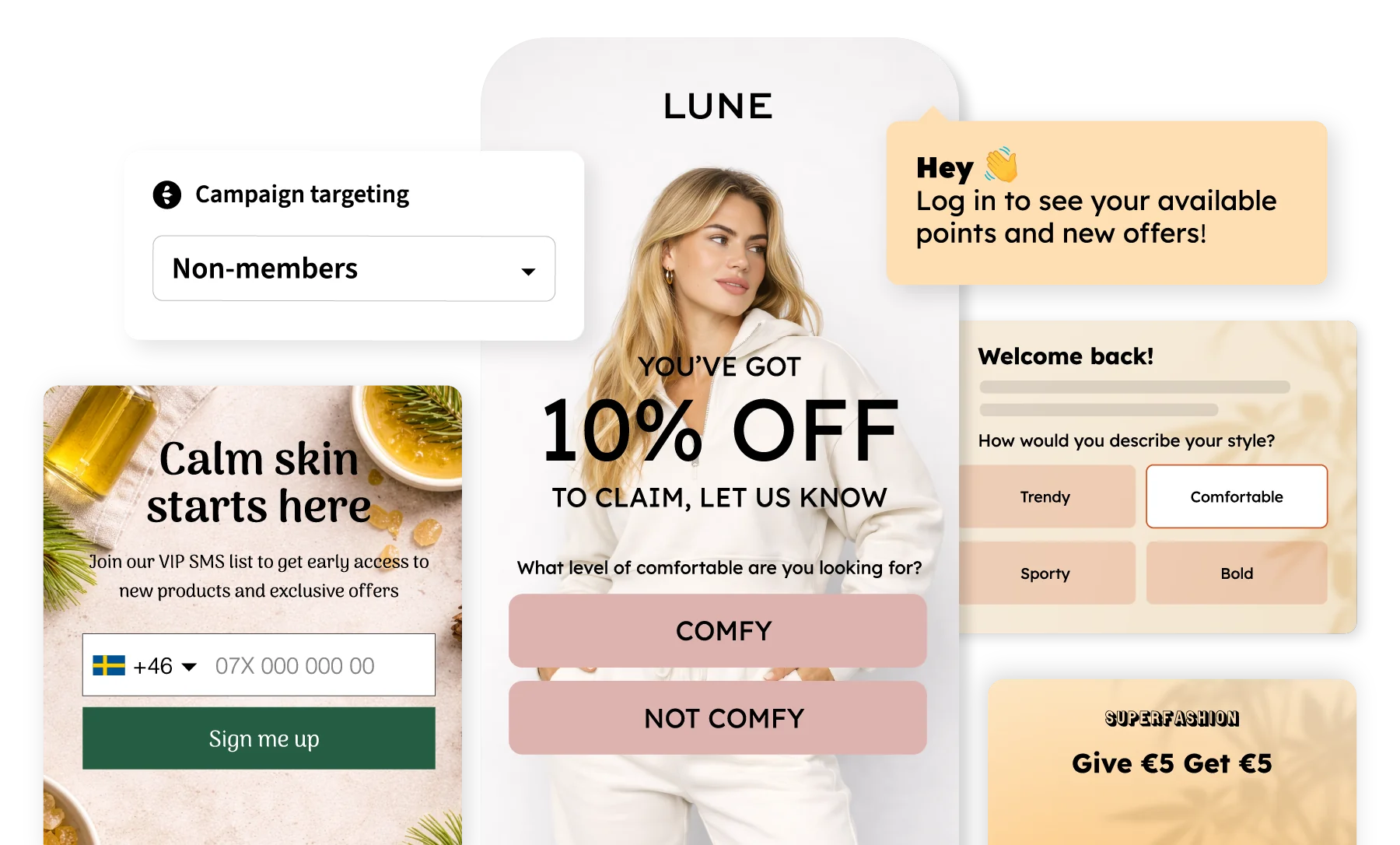
All Triggerbee features
The Editor
- DESIGN ELEMENTS
Core Design Blocks
Use these design elements to create more personalized onsite campaigns for every occasion and audience.
Container
Use containers to further customize your widget inside the canvas.
Columns
Use columns of two or three to group different blocks together.
Button
One of the most important elements to inspire action from the visitor.
Image
Add images to accompany your copy and match the feel of your campaign.
Text
Create engaging copy to grab your audience's attention.
Spacer
Create space around your blocks and improve the look of your campaign.
Sticker
Add that extra touch to your widget with ready-to-use sticker designs, or make your own.
Close Button
Ideally, you don't want your audience to opt out. But a close button should always be available.
- INTERACTIVE BLOCKS
Interactive Action Elements
Use these interactive blocks to inspire action and gather data, whether it’s an input field, buttons or a countdown.
Input Fields
Use Input Fields to collect data from your visitors, such as email addresses and phone numbers.
Radio Buttons
Use radio buttons when collecting data from your visitors, e.g. gender.
Checkbox
Add a checkbox to have your audience pick from different options.
Consent
Collect consent from your visitors, especially useful for GDPR in EU.
Countdown
Use a timer for short deadlines, to have the visitor perform a certain action in the same session.
Deadline
The deadline element is used to create hype and/or FOMO around your promotion.
Coupon Code
This element adds a field for a promo code along with a copy-button.
Single-use Coupon Code
This element lets you connect the copiable promo code to a coupon set with unique coupon codes.
Submit Button
Use the submit button when you have a form in your widget, i.e. something you want to "submit" to Triggerbee.
Targeting Options
- Targeting & segmentation
Target The Right Audience
Segment and target your audiences using CRM & Triggerbee data.
Audiences
Select from current audiences or create new ones, e.g. logged-in users.
Session Conditions
Combine the audience with conditions such as browser settings, javascript expression or UTM-tags.
Triggers
Select trigger(s) to decide when the campaign will be shown (e.g. "after X views").
Scheduling
Prepare your campaigns and set when they start and end.
Display Path
Enter paths of your webpage to either hide or show your campaign on.
Variants
Use variants to split your audience within the same campaign
Surveys
- SURVEYS
Ask Your Visitors Directly With Surveys
Have your audience answer surveys onsite to collect opinions and ratings, which you can analyze and follow up on.
NPS
Use NPS to measure the willingness of customers to recommend your brand.
CSAT
CSAT measures how satisfied the customer is with your product, service or meeting, among other things.
Star Rating
Let customers rate touchpoints with handcrafted star ratings.
Thumbs Rating
Let customers rate touchpoints with a thumbs up or down.
Smiley Rating
Let customers rate touchpoints with various sets of ready-to-use smileys.
Numerical Rating
Let customers rate the touchpoints from 1 - 10, or even 1 - 100!
Referral Marketing
- REFERRALS
Launch Referral Campaigns Onsite
Let your customers become brand advocates by spreading the word.
Share with friend
The main widget for referral campaigns. This opens a native share menu for mobile users and supported browsers.
Native share menu
This element opens up the native share menu on a mobile device and supported browsers (Edge, Safari)
Fallback copy-button
A copy-button will display on browsers that don't support native share menus, to ensure everyone can participate.
As well as...
Automations
Create automatic workflows to streamline your work.
A/B Testing
Test different offers, form lengths, button texts, tone, and much more.
Buzz - the AI Assistant
Buzz can help you with audience insights, campaign performance, and creating campaigns.
Iframe
Embed any custom content using frame, for ex. showing videos in campaigns.